Try it Free
What causes the “Gmail Messages are Missing” Issue?
The problem can happen due to several reasons, such as:
- Accidentally deleted or moved the emails to another folder or label.
- Archived the emails, deleted them from Inbox, and forgot about them.
- Your Gmail mailbox is part of a GWS account, and your admin deleted the emails.
- A Gmail filter automatically deletes emails.
- Gmail is configured in a third-party app that downloads emails and deletes them from the Google server.
- The missing emails were sent using Gmail’s Confidential mode.
How to Fix Gmail Messages are Missing Error?
Depending upon the actual reason, you can fix “my Gmail inbox messages disappeared” problem either with a simple search, or you may have to access the admin console for data recovery. Let’s look at all the methods.
Try These Quick Fixes
Before jumping to a complex method, try the following hacks:
Check different labels
Click on the All-Mails Label. It will list all the emails in your Gmail. If that didn’t work, check your Trash folder and other labels one by one.
Search emails
Use Gmail’s search bar to search for an email. Moreover, you can also try Gmail’s search operator for more granular searching.
Method 1. Check email forwarding settings
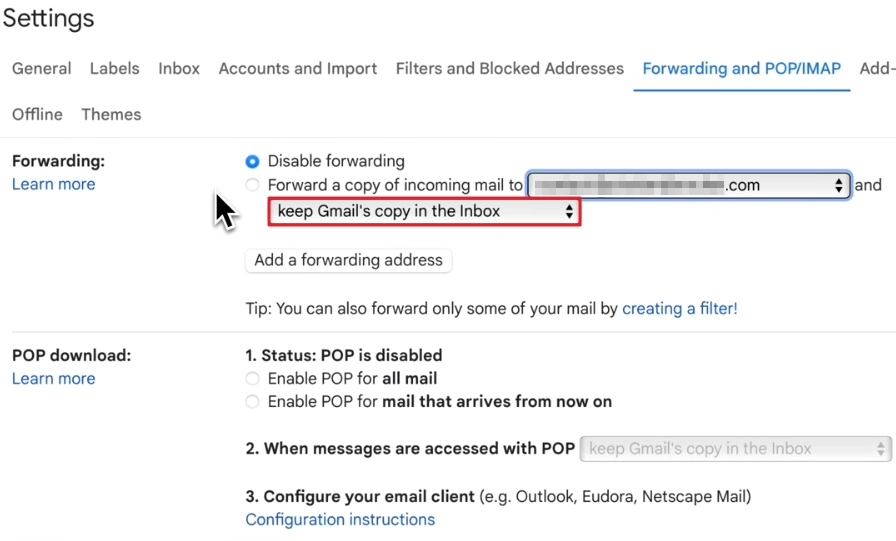
When you set up email forwarding, you have to specify what happens to the original email in Gmail. If you accidentally set it to delete Gmail’s email copy, the forwarded email will be auto-deleted, and you will face the “my Gmail messages disappear” problem. To resolve it, do this:
- In Gmail, click on the settings icon and select All Settings.
- Click on the “Forwarding and POP/IMAP” tab.
- If you are forwarding emails, make sure the option “keep Gmail’s copy in the Inbox” is selected.
Method 2. Verify POP access settings
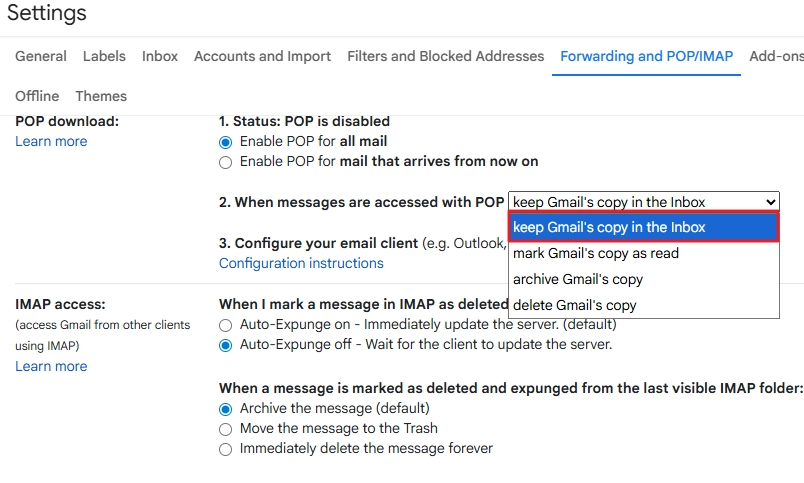
Users often configure Gmail in Outlook or other third-party email clients and choose the option to delete Gmail’s email copy when emails are downloaded. To fix “my Gmail emails disappeared from Inbox” problem, you must change this setting. Use these steps to access and modify POP settings in Gmail:
- In Gmail, click Settings > All Settings > Forward and POP/IMAP.
- In the POP download option, expand the options for “When messages are accessed with POP” and choose the value “keep Gmail’s copy in the inbox.”
- Scroll down and click the Save Changes button.
Method 3. Clean Gmail storage
If you are on a free-tier account with just 15 GB of space, it can fill up fast. When there is no free space available, Gmail will stop receiving new emails from anyone. To fix it, you need to release space in Gmail. To check your current Gmail storage, do this:
- In Gmail, click Settings > All Settings > Forward and POP/IMAP.
- In the POP download option, expand the options for “When messages are accessed with POP” and choose the value “keep Gmail’s copy in the inbox.”
- Navigate to the Google One page, log in with the Gmail account in which you want to fix Gmail messages are missing error, and click on the Storage option.
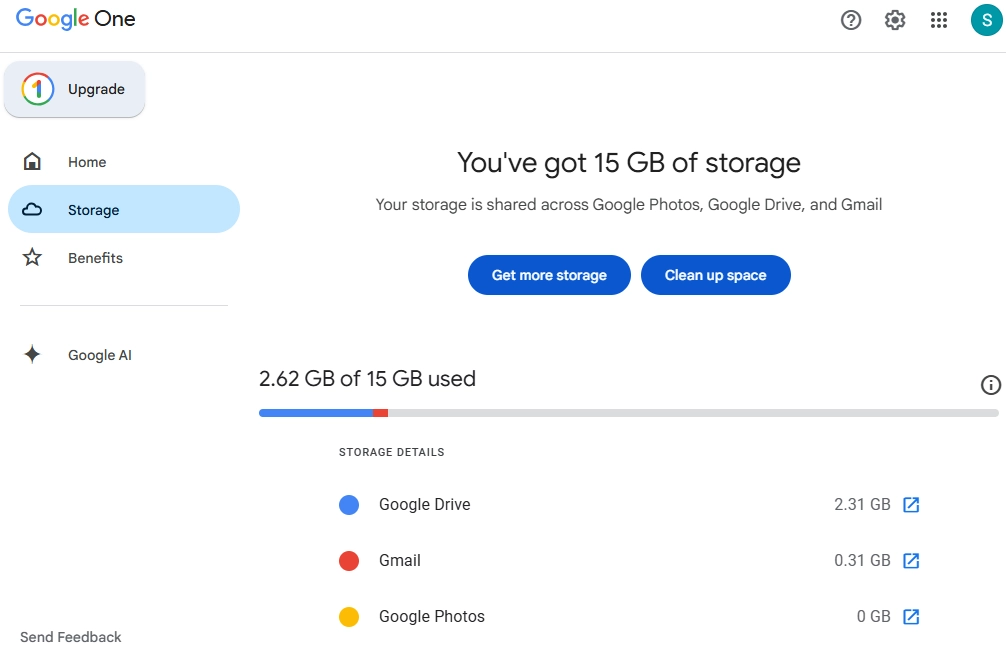
- To clean storage, click Clean up space and view the data cleaning options.
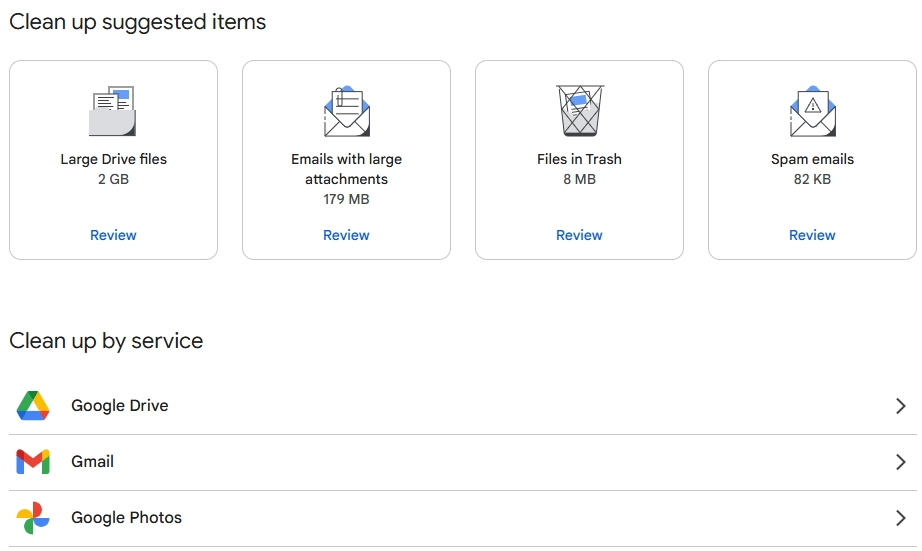
- Alternatively, you can also compare G Suite plans & pricing and expand your storage to fix “my Gmail inbox messages disappeared” issue.
Method 4. Disable Gmail filters
Sometimes, we create rules to auto-delete an email from a single or multiple senders. This email deletion can lead to “my Gmail messages disappear” issue. You can check and disable such filters with these steps:
- In Gmail’s All Settings page, click on the Filters and Blocked Addresses option.
- If there is any rule that is auto-deleting emails, delete it.
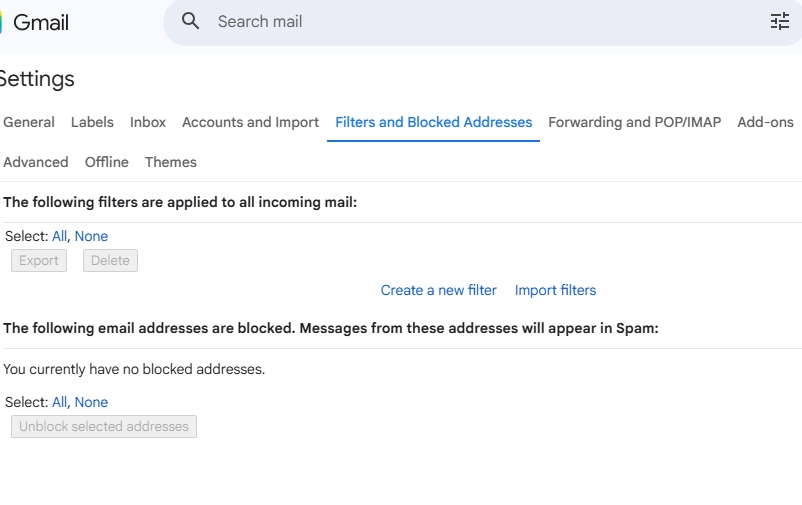
Gmail filters are one of the main reasons why some users’ Gmail emails are getting auto-deleted. Therefore, you must be careful when setting up one.
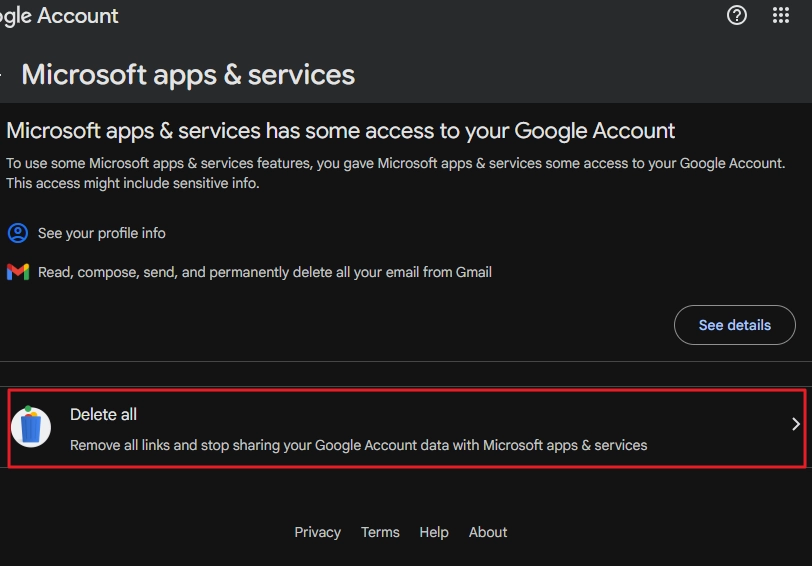
Method 5. Remove linked app access
A third-party linked application to your Google account is another reason for “Gmail messages are missing” issue. Old and outdated apps that have access to your inbox data can perform irregular activities like removing emails. Find and remove any such app with these steps:
- In Gmail, click on your profile picture and click on Manage your Google Account.
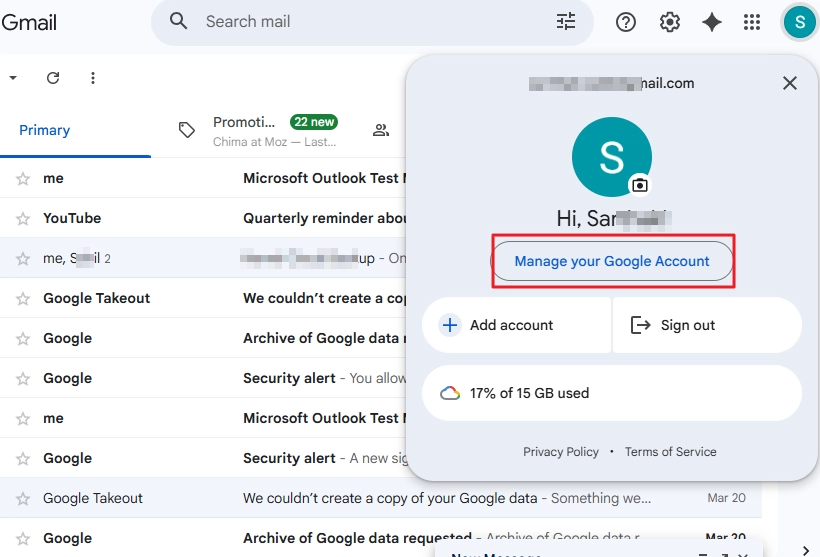
- From the left navigation menu, click on the option Linked apps.
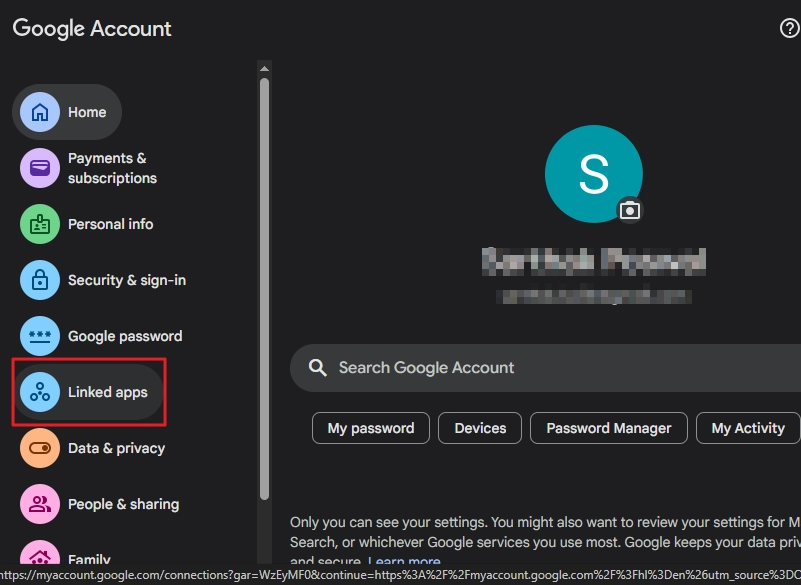
- Scroll down and click on the Delete all option. Then confirm the app removal.
Method 6. Ask the sender to avoid using Gmail’s confidential mode
Gmail provides a security feature. When you compose a new email, you have the option to turn on confidential mode. If your sender was making use of this feature, then the emails were automatically deleted from Gmail upon message expiry date.
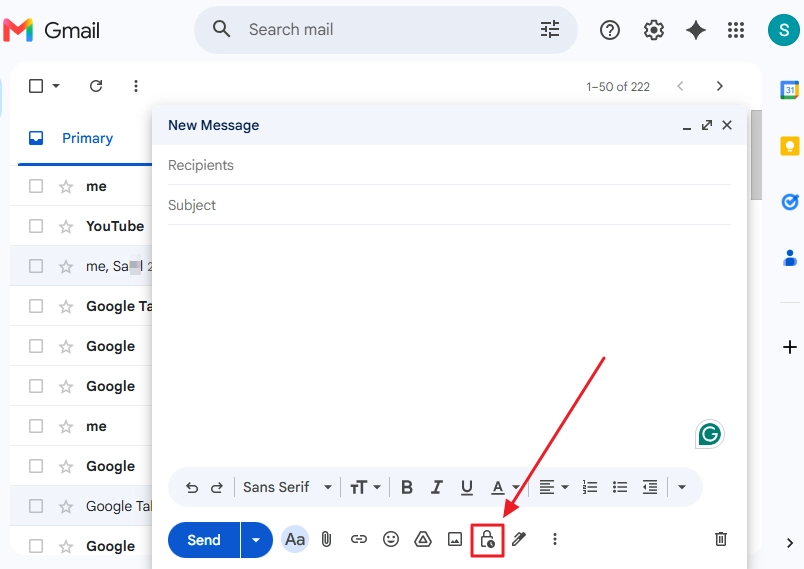
To stop the “Gmail messages are missing” issue from repeating in the future, you need to contact the sender and ask them to send you a message without using the confidential mode.
How to Recover a Permanently Deleted Message Using the Google Admin Center
The above-discussed methods will help you to stop the “Gmail emails disappeared from inbox” issue. However, to get back the deleted messages, you need to recover them. The first place to look for a deleted email is Gmail’s Trash folder. However, if the message is deleted for more than 30 days, then it is permanently gone.
In such a case, your last hope is to use the Google Admin Center to restore the emails. The Google administrators have an additional 25-day window (excluding the 30-day email retention period) to restore the message.
You can get the lost deleted emails with these methods:
Google Admin Center
The G Suite admin console allows you to restore deleted user account data, including emails.
Google Vault
If your organization uses Vault, then depending on the configuration of the retention policies, you can use it to recover data.
Gmail Data Recovery Tool
You can use the web-based Gmail Message Recovery Tool to retrieve lost data from your Google mailbox. But this method only works if the deleted data is within the 30-days retrieval period.
How Do Admins Avoid Permanent Google Email Data Loss?
When the 55-day (30-days default retention + 25 days extended time windows for admins) time period is over, there is no way to retrieve data from Google’s server; the data is purged from every Google cloud source. In such instances, only a backup file can help you to get your emails back.
Therefore, senior IT employees always create a comprehensive mailbox backup using an advanced Gmail backup tool. Having a mailbox backup saves you from data loss due to accidental deletion, unauthorized data manipulations, virus attacks, or cyber-attacks.
Author’s Verdict
There is no permanent fix for “Gmail messages are missing”. It could happen to anyone. Use the method discussed above to stop emails from disappearing. Use the recovery methods to get back the emails that are under the retention period.
The only reliable way to free yourself from permanent data loss risk is regular Google mailbox backup. Use the Kernel Gmail Backup tool for a complete mailbox backup with email metadata and folder hierarchy preserved. The tool can safely back up your Gmail emails to the hard drive for anytime access.
Frequently Asked Questions
Question: Google Takeout vs professional Gmail backup tool. Which is better?
Answer: It depends on your requirement. For a single mailbox backup, you can use Google Takeout. But for bulk mailbox backup, using a dedicated Google Workspace backup tool will save you from manual & repetitive tasks. Moreover, data backup with Takeout could take days, while a professional tool can do the same task in a couple of hours.
Question: If my Gmail emails are gone from the mailbox, does it mean they are lost forever?
Answer: Not necessarily. In most cases, emails are moved to a different label or archived. You can use the search bar to find them instantly.
Question: How to set autodeletion in my Gmail account?
Answer: To delete emails automatically, you must create filters and configure the rules for message deletion.
Question: Why are my emails getting deleted when I am using Outlook to access Gmail?
Answer: If you have configured Gmail using POP and have chosen the option “delete Gmail’s copy” in Gmail’s POP settings, then all the new Gmail emails will be deleted after being downloaded in Outlook. To stop this, change the “delete Gmail’s copy” value to “keep Gmail’s copy in the Inbox.”