 Try it Free
 Try it Free
Imagine you are waiting for a contract. The client says they sent it an hour ago. You refresh your Inbox and find nothing. Even the Spam folder is empty. Then, you check the server, but everything looks fine there, too. And you start wondering, why SmarterMail not receiving emails? Did the firewall block it, or did your SmarterMail subscription end?
Most admins immediately blame the software. They think SmarterMail is broken. But usually, it is the environment. SmarterMail is just a software that allows you to view emails from the server. But if the issue is with your DNS settings or port configuration, you have to check and fix things at your end.
We are not going to talk about theory here. Instead, we will fix it by looking at the logs, checking the ports, and forcing the services to start working again.
Reason for SmarterMail Not Receiving Email Issue
Why does a healthy server suddenly go silent? It is usually one of three things.
No Free Disk Space
SmarterMail needs space to receive new emails. When an email comes in, SmarterMail processes it and moves it to the right folder. But, in case your C drive has zero bytes left, SmarterMail sets a safety lock. It refuses all incoming connections to prevent corruption. You will not get any notification, just no more emails.
The DNS Map is Wrong
Email relies on MX records. If someone changed a setting in your domain registrar, or if your DNS provider is dealing with a server issue, the rest of the internet, including the sender's email server, will not be able to find you. Furthermore, a blocked port 25 can also stop any incoming email.
Email in Spool
Every email sit in the Spool before it gets sorted. Sometimes, a corrupt file gets stuck in the spool, preventing any other email from passing through. The service keeps trying to process that one bad file, but keeps failing, which leads to the issue of not receiving emails in SmarterMail.
Quick Troubleshoots to Fix SmarterMail Not Receiving Email
Before you start making changes to your SmarterMail configuration, try these fast checks.
Check the Internet: Can the server connect to the web? If the server has no internet, no email will be received.
Verify Email Configuration: Verify if your MX records & DNS configuration are correct and updated as per the SmarterMail server.
Send Internally: Try sending an email from one user on the server to another user on the same server. If this works, your internal delivery is fine. The problem is external.
Look in the Spam Folder: If something is not in your Inbox, always look for it in the Spam folder first.
Create Empty Space: Delete obsolete data from your system. Furthermore, find and remove duplicate items from your disk to avoid missing emails due to full storage.
If these troubleshoots did not work for you, then go ahead with the solutions given in the next section.
Methods to Fix SmarterMail Not Receiving Email
I have searched SmarterMail websites and multiple forums to find out the most reliable methods. We will discuss them all one by one:
Method 1: Restart the SmarterMail Service
Sometimes the Windows Service says all email related services are in "Running" state. But it is actually frozen. A simple stop and start may fix it. Do it like this:
- Open the Task Manager in your system.
- Select the Services tab and look for a service related to SmarterMail.
- Right-click and select Stop. Wait for ten seconds to let it close and get out of RAM.
Note: if it does not stop, you might need to kill the process in the Details tab. - Select the service you closed in the last step and start it again.
Method 2: The Spool Flush
As I said above, a corrupt email stuck can stop the new incoming emails from showing. Remove the email with the issue with these steps:
- Login to your SmarterMail account using the admin credentials.
- Click on Manage > Spool > All Messages
- Select the emails and click on the Delete button.
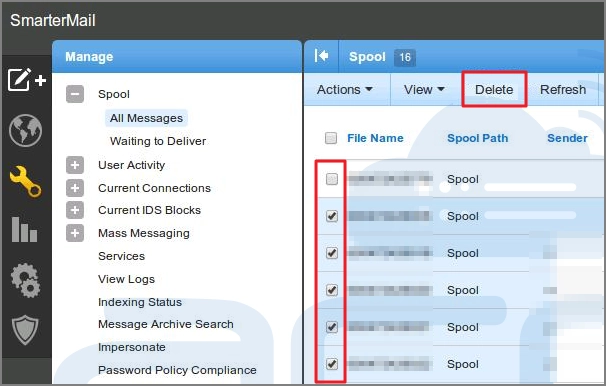
You can also remove the SmarterMail not receiving email issue, by renaming the spool folder. To do it:
- Stop the SmarterMail service.
- Go to the installation directory.
- Copy the Spool folder content to a safe location.
- Rename the Spool folder to spool_old.
- Then start the SmarterMail service.
This method will create a new spool. But if not done correctly, you may lose important emails. To prevent it, make sure to backup your emails. For a quick and complete backup of all your emails from the server, I suggest using a professional IMAP backup tool. Using a dedicated tool is much easier than running the time-taking manual backup scripts.
Method 3: The Port 25 Check
Port 25 is the standard door for incoming email. If your firewall or antimalware program blocks it, you will not receive new emails. Check the port blockage like this:
- Open a Command Prompt on your personal computer (not the server).
- Type telnet mail.yourdomain.com 25.
- If the screen goes black or you see a welcome message from SmarterMail, the port is open.
- If it says, "Connection failed," something is blocking the port. Check your Windows Firewall or your ISP settings.
Note: If Telnet is disabled, enable it from Control Panel > Programs > Turn Windows features on or off. Then, check the Telnet Client, and click OK.
Method 4: Read the SmarterMail Log Files
SmarterMail writes down everything it does. You can find the solution for SmarterMail not receiving email in the server-generated log file. Do this:
- Log in to the SmarterMail web interface as the System Administrator.
- Click on the Manage icon (the gears).
- Go to Troubleshooting and then View Logs.
You can also download SmarterMail log analyzer tool to scan large log files quickly.
Tips to Prevent the SmarterMail Not Receiving Email Issue
You do not want a redo of the above methods every week. Keep monitoring these things to avoid the issue in the future:
- Set Disk Alarms: Use a monitoring tool to alert you when the drive is 90% full. Do not wait for 100%.
- Separate Partitions: Never keep your OS and your Email data on the same partition. If the OS logs or applications fill the drive, you get no new emails. Keep them apart.
- Regular Reboots: It sounds basic. But scheduling a server reboot once a month clears out stuck processes and memory leaks.
If you have experienced this issue multiple times in the past, you should consider moving to a better email service provider. You can migrate SmarterMail to Microsoft Office 365 or other reliable environments that offer features like instant scalable storage and better availability of servers.
Conclusion
Fixing a silent email server is stressful. The reason is either a full disk drive, a connection, or a corrupt file. Use the troubleshoots and methods above to fix SmarterMail not receiving email problem. Also, apply the preventive tips to reduce the chances of getting the error again. Methods like Spool flush can cause data loss. Therefore, regularly backup your data. Either use the manual scripts to copy the emails or use a dedicated Kernel IMAP Backup and Restore Tool for a faster and safer process.
Frequently Asked Questions
Question - Why can I send an email but not receive it?
Answer - Sending uses outbound ports. Receiving uses inbound Port 25. Even if email sending is fine, your ISP might be blocking Port 25, maybe to prevent spam, which can stop incoming emails.
Will restarting the service delete emails?
Answer - No. Emails are stored on the disk. Restarting the service just restarts the engine that reads them. You will not lose data.


Best tool to backup IMAP mailboxes in PST, EML, MSG or other file formats.