 Try it Free
 Try it Free
Comcast or Xfinity are the term used for the same email service designed for the residential internet users of Comcast. The email service acts as a foundational domain to login to third-party streaming applications. When your email application fails to establish a connection with the email server, users experience “imap.comcast.net not responding error” that disrupts the email communication. The error is primarily because of the network issues, incorrect account settings, and several other issues.
To restore the workflow and regain control of the communication, you need to identify the causes and get rid of the error from the source. Analyze the article to find methods and learn how to troubleshoot imap.comcast.net not responding error.
Why do I see imap.comcast.net not responding error?
The error message indicates that the server is unable to connect to the Comcast email server. To fix the Comcast error, you need to first understand what is causing the issue to occur in the first place:
- Incorrect server settings: When the server is configured with incorrect incoming, outgoing server settings, or port number.
- Server outage: When the Comcast/Xfinity server is down, you might see the comcast error.
- Using improper credentials: If you have entered wrong credentials when logging in to the Comcast account, you might see the imap.comcast.net not responding error.
- Network error: Due to slow or unstable internet connection, there can be blockage in connecting with the email server.
- Corrupted profile: The error can occur if you are accessing your email account using a corrupted profile.
imap.comcast.net not responding? Try these troubleshooting tips
Explore some of these advanced solutions as a quick fix to resolve the imap.comcast.net not responding error.
Tip 1: Fix Cromcast.net server settings
IMAP or incoming server
- Server address: imap.comcast.net
- Port number: 993
- Security: SSL/ TLS
SMTP or outgoing server
- Server address: smtp.comcast.net
- Port number: 587
- Security: SSL or TLS
If the settings are not adjusted as stated, you might notice errors when accessing your mailbox.
Tip 2: Validate internet connectivity
Open your browser and check if you can browse any website or site pages are loading. If not, follow these:
- Restart the Wi-Fi router to fix the connectivity.
- Disconnect the Wi-Fi and access the email service using the mobile hotspot.
- If possible, try accessing the email account over different network.
Tip 3: Add the email account again
Sometimes removing and then adding the email account again seems to help in resolving the error imap.comcast.net not responding. Here is what you need to do:
- Sign out from the existing Comcast email account.
- Now, remove the configured email account.
- Once done, add the account again using the server settings as mentioned in Tip 1.
See, if the error is resolved and you are able to operate the emails again. However, if not, move to the next tip.
Tip 4: Disable Use GuessSmart in Outlook
It often happens that when you’re using Comcast in Outlook, the Outlook application detects incorrect settings automatically. Configure the account manually in Outlook with the correct port numbers (993 for IMAP and 587 for SMTP). Fix this and see that the account will start functioning normally again.
Tip 5: Verify security certificates
If you have disabled or turned off the security certificates (SSL), the Comcast server will show IMAP Server timeout error. To avoid this, check that you’ve enabled SSL/TLS or IMAP port 993 and STARTTLS is enabled on SMTL port 587.
Tip 6: Validate Comcast Servers are not down
Xfinity or Comcast servers often face server outages, which directly impact the usage of emails and other mailbox data. Make sure to check Xfinity Status Center, Downdetector, and Xfinity App alerts. If the issue is from the service end, you just need to wait for the issue to be resolved or you can connect with their support team to learn how much time is it going to take.
Tip 7: Disable antivirus/firewall
Faulty antivirus and firewalls can block the server ports, resulting in restrictions on the incoming/outgoing email messages. Disable Windows Defender firewall or any other antivirus software installed within your computer on a temporary basis.
If your emails are working after making these adjustments, there was the issue in the security software. You can enable them again but with the exceptions to IMAP and SMTP.
Tip 8: Update, Uninstall, and Re-install
When your email client is faulty or outdated, you might have disruptions in sending/receiving emails. What you need to do in such case is first try updating your email application. If that works, then you can continue using your mailbox.
However, if the issue still persists, uninstall the software and re-install the updated version to resolve the issue.
Tip 9: Reset settings on smartphone
When you’re accessing your mailbox over a smartphone and there’s imap.comcast.net not responding issue, you need to make adjustments in the settings to resolve it. Here are the steps:
For iPhone device:
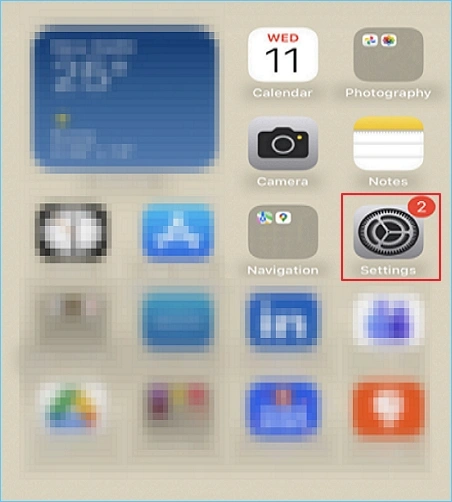
Step 1: Open your iPhone and go to Settings.
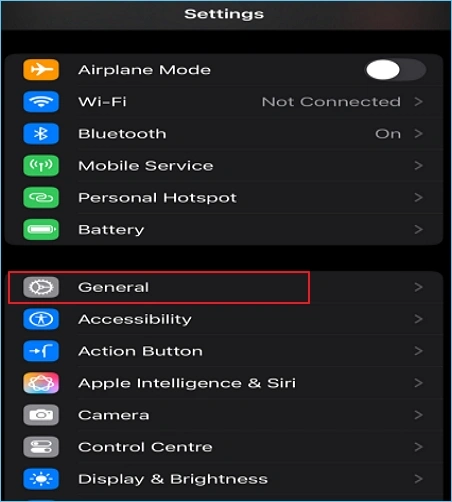
Step 2: Click on General from the list of setting options.
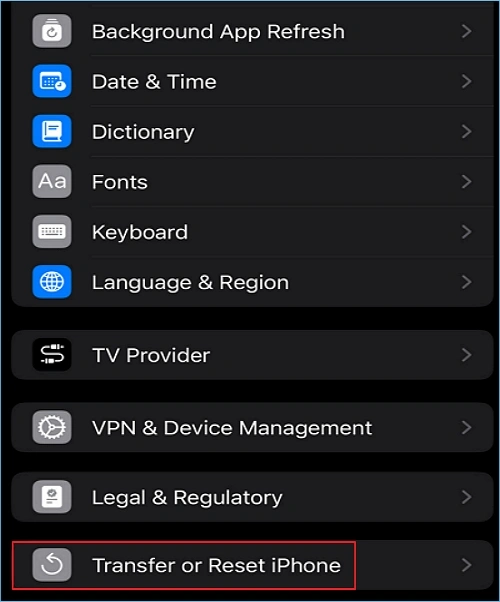
Step 3: Now, select Transfer or Reset iPhone.
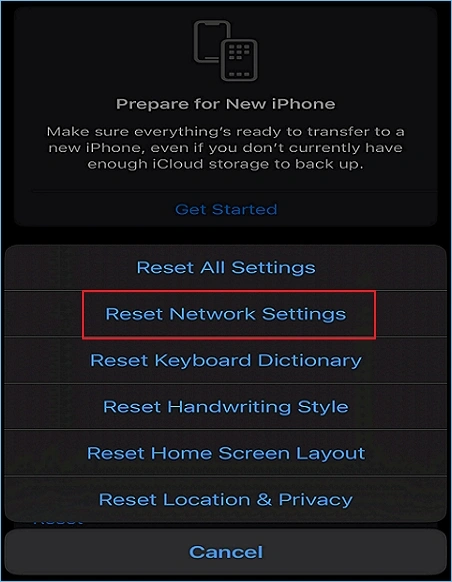
Step 4: From this screen, tap on the Reset button.
Step 5: Lastly, click on Reset Network settings and you’re done.
For Android device::
Step 1: Open your Android device and go to Settings.
Step 2: Click on System and select Reset.
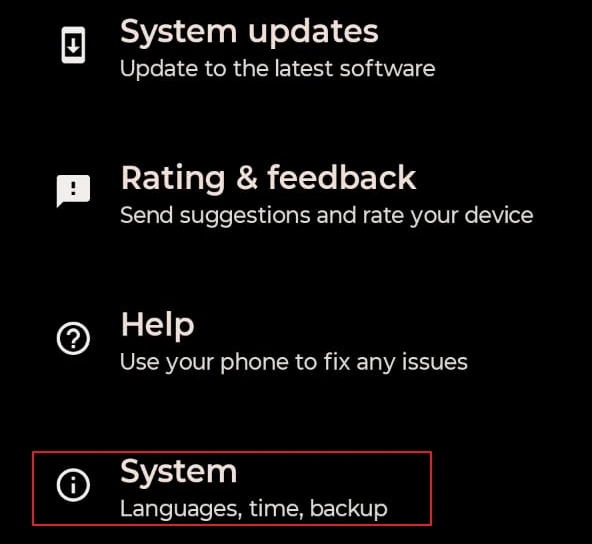
Step 3: Tap on Reset Wi-Fi, Mobile, & Bluetooth.
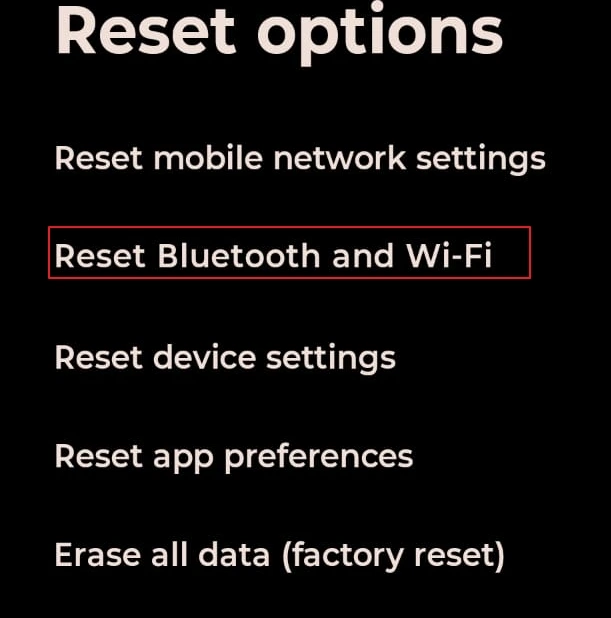
This way, you can remove the error from your smartphones.
Tip 10: Double check login password
If the entered password is wrong, you will see the not responding error in Comcast server. This is because Xfinity can forcibly implement a password reset if:
- You accidentally or intentionally sign out of your email account
- Have email account inactive for more than 12 months
- or have multiple failed attempts to sign in
Some quick solutions to try
Apart from the solutions explained, you can try out the following on-the-go solutions:
- Turn off Wi-Fi assist and remove & add the Xfinity email account again in iPhone.
- Delete the app cache, turn battery saver off, and re-add the email account in Android.
- Disable auto discovery feature or create a new Outlook profile in Windows or Mac device.
- Get rid of the DNS cache using ipconfig /flushdns command on Windows.
- Change the Comcast DNS to Cloudflare (1.1.1.1) or Google (8.8.8.8, 8.8.4.4) DNS.
- Comcast can block any suspicious or blacklisted IP address, so try using VPN or different network.
Why is IMAP backup necessary?
With so many methods available to fix Comcast server not responding error, you can regain the control of your email communication. However, there are chances of data loss during the process and even after applying the solution (as there’s no guarantee to completely eliminate the error). In such cases, you will need to safeguard the data, which is only possible by securing a structured IMAP backup to your computer. For this, you can use an effective IMAP backup tool that helps in saving error-free backups.
Kernel IMAP Backup and Restore tool is a professional IMAP backup solution that helps in saving data from more than 20 IMAP server-based email clients. The tool allows you to backup emails from Comcast to PST, EML, MSG, PDF, and other file formats. It helps you save data to your preferred destination on your local machine without losing its integrity.
Conclusion
Based on the cause behind the “imap.comcast.net not responding error,” you can choose any of the solutions to get rid of the error. However, if you don’t know the reason behind the problem, try the mentioned methods one by one to see which one of them works for you. Irrespective of the chosen method, it is always important to backup IMAP emails to avoid losing crucial emails under any circumstances. Kernel IMAP Backup and Restore solution is a suitable tool to help you secure a well-structured backup to your offline storage.
Frequently Asked Questions
Question: Why do I see IMAP comcast.net not responding error?
Answer: If your Comcast server is not responding and showing you the error, it signifies that your email application is unable to build a connection to the Comcast IMAP server.
Question: How do I enable IMAP for Comcast email?
Answer: Go to the Settings of your email application on your preferred device and access your Comcast email account. Select the option to add a new account (IMAP account). Provide the user login credentials and submit to connect. Now, you can find two Comcast accounts (POP and IMAP).


Best tool to backup IMAP mailboxes in PST, EML, MSG or other file formats.