 Try it Free
 Try it Free
I have an Outlook user mailbox working with GoDaddy. I am planning to switch from GoDaddy email to Squarespace account. Will I lose my business data during the process? Is there any way to make this transition smooth and error-free, while keeping the data secured?
GoDaddy is one of the trustworthy domain hosting and email services providers. Another name at the top of this list is Squarespace, which is preferred over the former one. This is particularly because of its built-in security and user-friendly dashboard. However, the process involved in this transition involves a lot of ups and downs, making the journey complicated. If you are planning the shift to Squarespace, you might be looking for the answers to how to transfer GoDaddy email to Squarespace.
Well, all your worries are going to end with this article. Read it to the last to find the best solutions to transfer data with zero data loss and 100% accuracy.
Why migrate emails from GoDaddy to Squarespace Account?
Migrating emails between GoDaddy and Squarespace doesn’t involve the direct transition of emails. This is because both platforms differ in the way they host the emails. Let’s check out some major reasons to make this decision:
- Moving to Squarespace comes with a centralized platform with a dashboard that allows easy handling of DNS settings, domains, and websites.
- Provides a simple and user-friendly control panel/ dashboard to manage website hosting and email services.
- Comes with strong built-in security features to prevent cyber threats and malware intrusion.
- Helps in taking complete site backups to avoid data loss against unexpected situations like system crashes, etc.
Quick Way to Transfer GoDaddy Email to Squarespace
To transfer only the emails from your current GoDaddy account to the new Squarespace account, use the following steps:
We will discuss the procedure in three different phases to keep things simple and easy to follow.
Step 1: Login to your Squarespace account. Under the Dashboard, click on DOMAINS button
Step 2: Under Domains, select the domain in which you wish to get the emails.
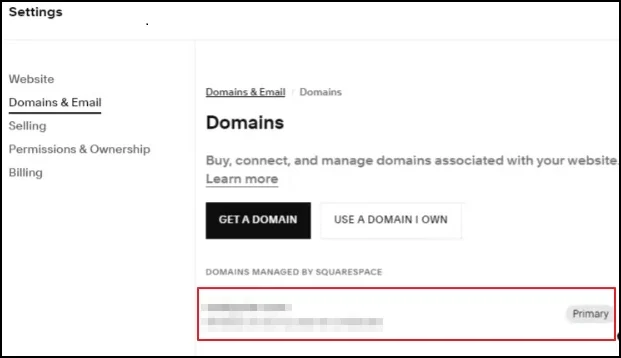
Step 3: Click Edit DNS to view all the MX Records currently added to your Squarespace account.
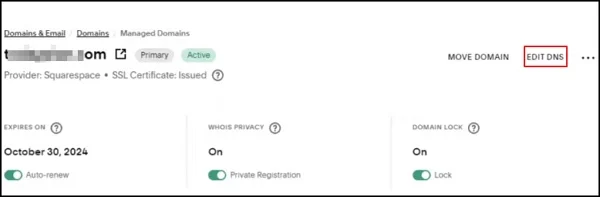
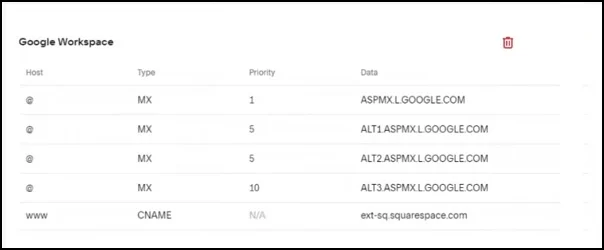
Step 4: Find and copy the Google Workspace MX records. Save these records securely, we will need them in the next phase.
Step 1: Login to your GoDaddy account and select the domain from which you want to move the emails.
Step 2: Click on the DNS tab to access all the DNS records.
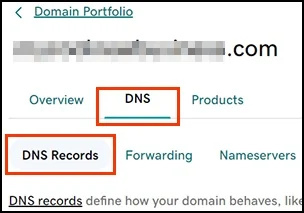
Step 3: Select the MX records and click the Delete button.
Note: If you get an error while deleting MX records, check if domain forwarding is enabled. Disable it and try again.
Step 4: Click Add More Records button and add the Squarespace MX records you saved in the previous phase.
Step 5: Click Save to save the changes you just made.
After changing the MX records, all new emails will be sent to your new Squarespace domain. However, your old emails will not be moved yet. We will migrate your old emails in the next phase.
Step 1: Go to Google's admin page and login with your new G Suite account.
Step 2: From the right-side navigation pane, select Data > Data import and export > Data migration.
Step 3: Find the IMAP card and click Migrate.
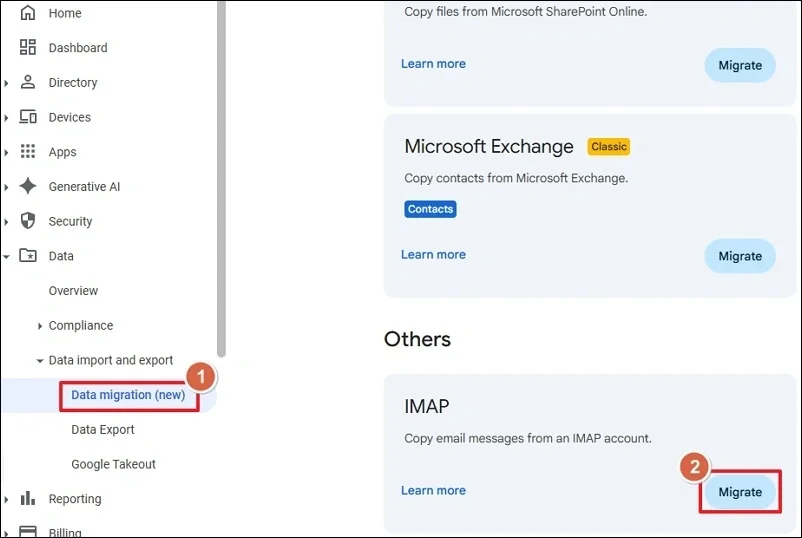
Step 4: Provide the GoDaddy server name and click Test connection.
Step 5: Click the Upload CSV button to upload a CSV file containing details of the account from which you want to migrate data.
Step 6: Configure the extra settings and then click SAVE.
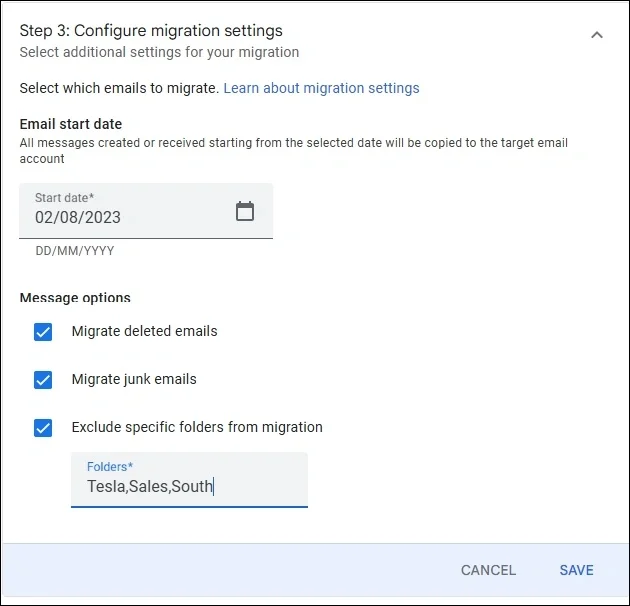
Step 7: Click Start Migration to begin GoDaddy email to Squarespace transfer.
Note: The above steps only move your email and do not migrate GoDaddy domain to Squarespace.
Squarespace uses third-party providers for email communication, and in most cases, it uses Google Workspace. If your Squarespace website uses a different email provider, then you can download GoDaddy emails and import them into your email service provider.
Automated IMAP Migration Tool for GoDaddy Emails to Squarespace Migration – Recommended Solution
The best method to perform the transfer of emails from GoDaddy to Squarespace is with the professional Kernel IMAP to IMAP Migration solution. The Imap migration tool is quite efficient and migrates single as well as bulk mailboxes between more than 20 IMAP server-based email clients.
The tool supports easy user mapping through manual efforts and with a pre-mapped CSV file. It includes advanced filters that help you migrate selective data with 100% accuracy and zero data loss.
Here’s how to migrate GoDaddy email to Squarespace account:
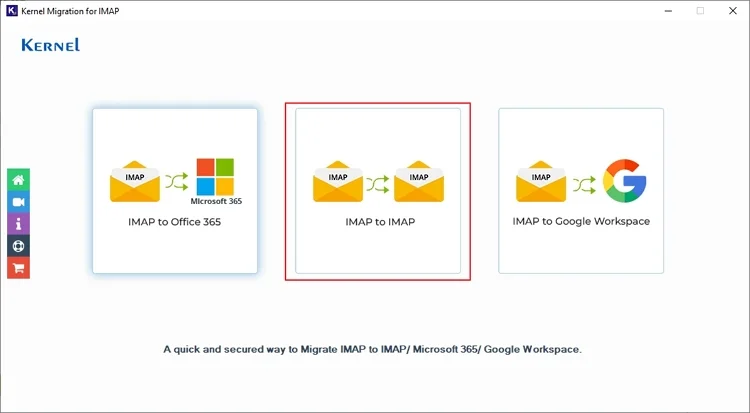
Step 1: Launch Kernel Migration for IMAP tool in the system. Select IMAP to IMAP from the options.
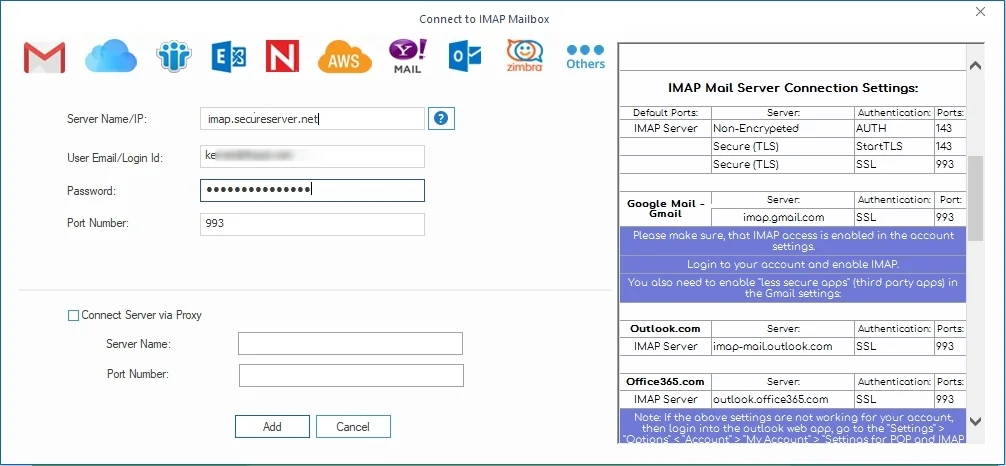
Step 2: Click on Add button from the Add Source to enter GoDaddy account credentials.
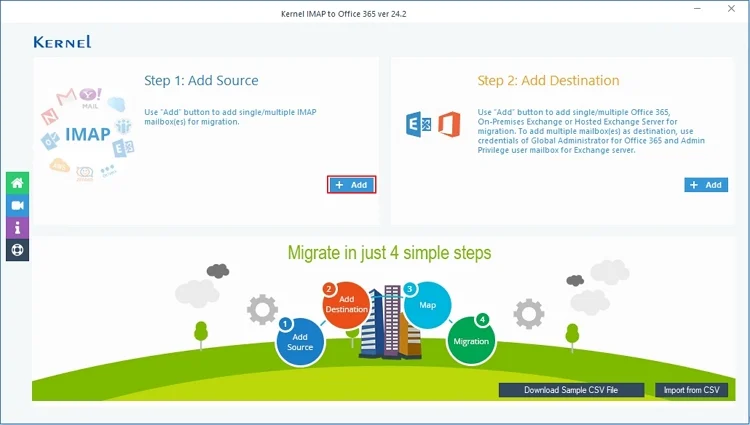
Step 3: Provide the asked login details, such as Server Name/ IP Address, User Email/ Login ID, Password, and Port Number. Click Add.
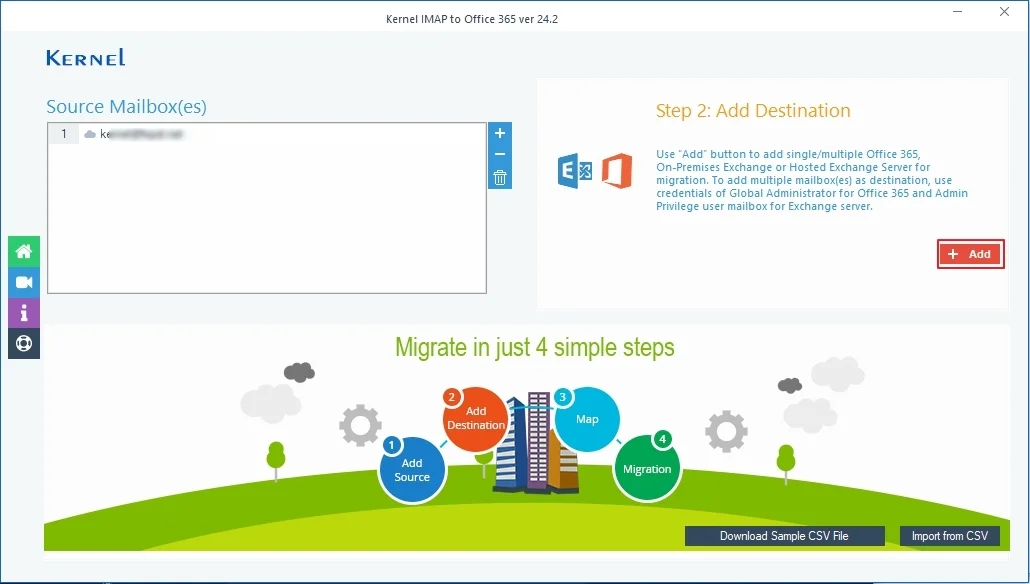
Step 4: Similarly, go to the Add Destination to add the Squarespace account.
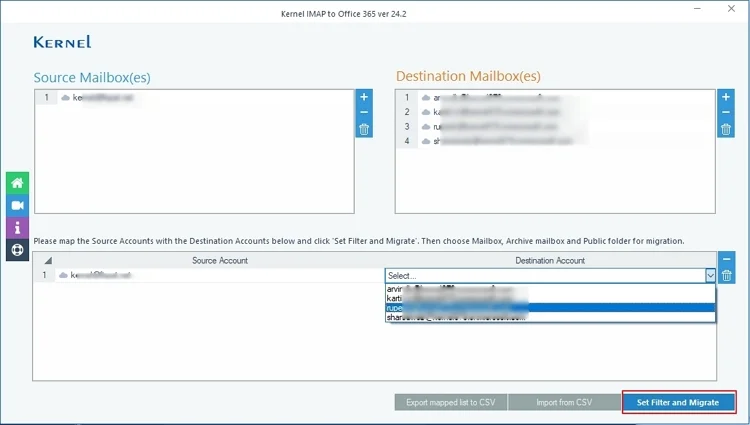
Step 5: Map the source GoDaddy mailbox with the Squarespace mailboxes in the destination using the dropdown. Click Set Filter and Migrate.
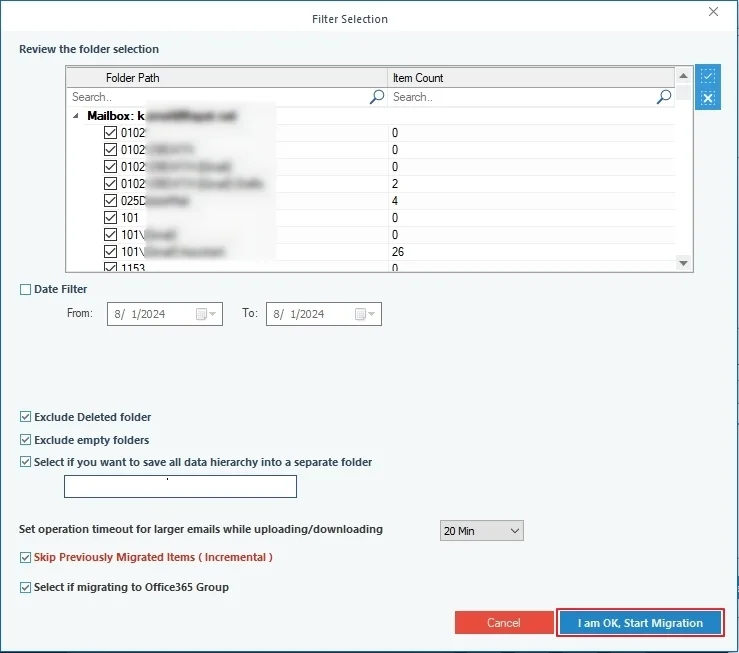
Step 6: Tool will begin enumerating the mailbox folders, once done, you can select the folders to migrate emails.
Step 7: Select the desired filters from the list for precise and relevant migration of data. Click I am OK, Start Migration.
Step 8: Migration process will begin, and the tool will display the real-time progress of the GoDaddy emails to Squarespace migration with all the precise details.
Once the process is complete, you can review the migrated mailboxes and the process status.
Conclusion
With the manual method being less effective for GoDaddy emails to Squarespace migration, use a professional tool like Kernel IMAP to IMAP Migration. The tool is full-fledged with features that make it easy and efficient to transfer data with accuracy. It supports bulk migration of data without causing any data loss. The tool simplifies the migration between these two platforms with IMAP access enabled.


Best tool to migrate bulk mailboxes from one IMAP account to another IMAP account instantly.