 Try it Free
 Try it Free
Foxmail email client is used majorly by users who seek efficient management of multiple accounts within one application on Windows or Mac system. It is an open-source email client that showcases a simplified and clean user interface. Moreover, you can run the application simply from a USB drive, providing easy access.
Users often have to lose their entire data due to abrupt system shutdown, sudden crashes, accidental deletion, or corrupt profiles. This is something that needs to be eliminated if you do not want to lose your crucial emails and attachments. To avoid this, you need Foxmail backup on a regular basis, so that you can access your mailbox even when there has been a severe disaster.
Why is it recommended to back up Foxmail?
Here are the reasons why experts recommend saving the Foxmail backup on your computer:
- Helps with easy point-in-time recovery from disasters, like accidental deletion of emails, attachments, or folders.
- Allows avoiding data loss during instances of system or software upgrades.
- Prevent data against viruses and other threats that can make your data inaccessible.
- Protect data in the instances of hard drive failures and power outages.
- Provide data accessibility even if the data files are corrupted.
Where does the Foxmail store data?
Foxmail stores all your data locally within a folder created under your user profile. You can find the folder at the location below:
C:\Users\
Files and folders in the Foxmail mailbox:
.box files: Store emails from Inbox, Sent, and other folders
Storage\Boxes: Contain different mailbox folders
Account.rec0: save login passwords
Windows registry: Encrypted passwords for recent versions
AddrBook: Address book and contacts are saved
Attach: All attachments linked to the emails
Reliable Solutions for Foxmail Backup
You can find several methods to execute Foxmail backup. Some of those are explained further in this write-up:
Solution 1: Backup each Foxmail folder individually
This method will allow you to backup each mailbox folder from your Foxmail account separately. Let’s look at the steps:
Step 1: Launch your Foxmail client on your PC.
Step 2: Go to the folder you want to backup and right-click on it.
Step 3: Select the option: Export Mail.
Step 4: Choose the desired format from .eml or .box and provide the location to save.
This will save your email data to the desired location you’ve provided.
Solution 2: Save your Foxmail contacts
Contacts within Foxmail are saved differently from other data, therefore, should be backed up manually. Here are the steps:
Step 1: Open Foxmail and go to the Address Book.
Step 2: Click on File and then Export to export the selected contacts.
Step 3: Select the file format to export contacts from .csv or .xml.
Solution 3: Manual Foxmail emails backup
Follow the given steps to backup emails from Foxmail manually:
Step 1: Firstly, close Foxmail properly.
Step 2: Use Windows + R key to open the Run window.
Step 3: Input %appdata% and click Enter.
Step 4: Select to open the Foxmail folder and copy the folder to a safe location.
Step 5: After copying the folder on your computer/ NAS storage, rename it using date as the suffix.
Solution 4: Use Foxmail account settings
With the help of backup account settings, you can take Foxmail backup when reinstalling or moving the email client to a new computer. To do this:
Step 1: Launch Foxmail and go to the Menu.
Step 2: Now, go to Account and select Export Account Settings.
Step 3: Now, you can save the exported data within the .xml file.
Solution 5: Use IMAP settings for cloud backup
With the IMAP account settings enabled, you can save the cloud backup that is stored on the email server. For the backup, follow the steps:
Step 1: In Foxmail, go to Account Settings.
Step 2: Change the account settings to IMAP.
Step 3: Provide the incoming (IMAP) and outgoing (SMTP) server details.
With this, you can protect your data under all circumstances.
Solution 6: Ultimate solution for Foxmail backup – Automated IMAP backup tool
When you use these methods for Foxmail backup, you can save the data, given that the mailbox is working fine. However, if there are any issues with mailbox, you'll lose the data. Apart from that, you need to have understanding of the server settings and Foxmail client to perform this method to back up your account.
To protect your data from issues and make it always accessible, use Kernel IMAP Backup and Restore tool to efficiently backup data to local and network drives. The IMAP backup tool allows you to archive IMAP emails locally using the data filters, simplifying saving as per your requirements. With this tool, you can backup single or multiple IMAP mailboxes simultaneously without losing any data. The tool allows you to save email backup to PST, EML, PDF, HTML, and other file formats.
Simple steps to save Foxmail backup includes:
Step 1: Launch the tool and click on Backup under IMAP Backup, and click Add.
Step 2: Provide the required credentials and click on the Add button.
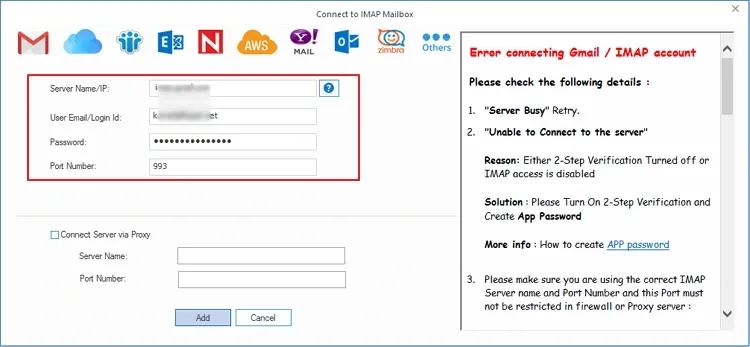
Step 3: Review the folders and select the desired ones.
Step 4: Apply the required data filters and other suitable options.
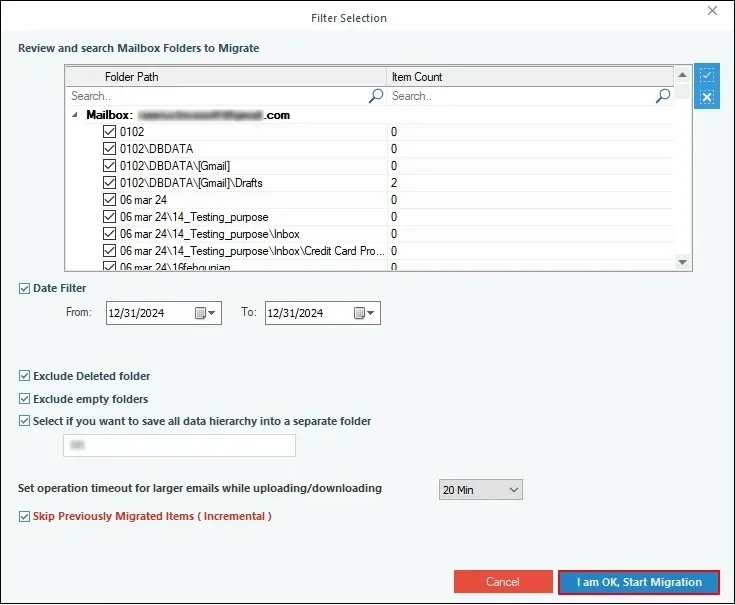
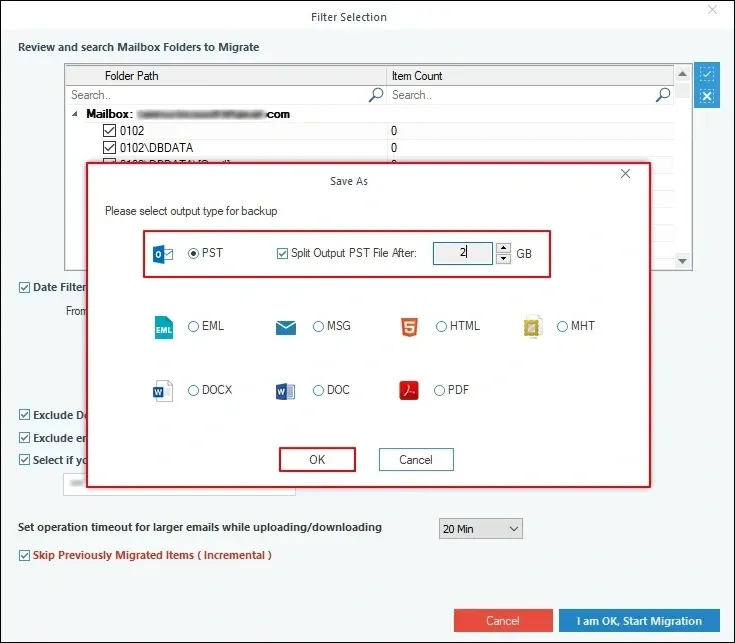
Step 5: Choose the output file type (PST, EML, MSG, etc.) and click OK.
Step 6: Provide the file saving path and start the Foxmail backup process.
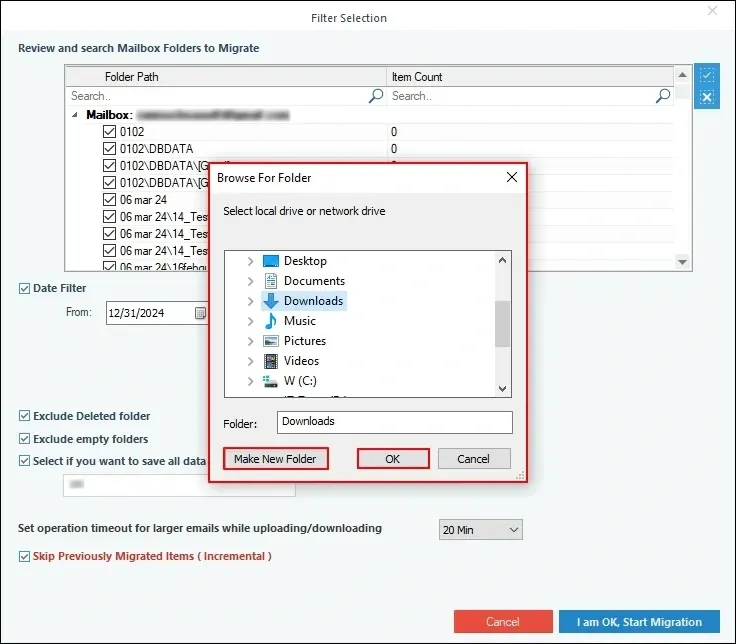
Once the Foxmail backup is complete, the data will be accessible within the offline location on your computer.
How to restore backup to Foxmail? Easy Steps
With the available Foxmail backup, you might often need to restore the data to an existing Foxmail user account. To restore Foxmail backup, follow the steps:
Step 1: Close Foxmail and type %appdata%\Foxmail\ in the Run window.
Step 2: Remove or rename the folder of the existing profile.
Step 3: Paste the Foxmail folder from your offline storage to this directory.
Step 4: Restart Foxmail client.
This will help you restore the available backup to your Foxmail account, allowing you to re-access your emails.
Final Thoughts!
It is important to back up Foxmail email data to avoid losing all your crucial emails and attachments. You can use these methods to save the data according to your requirements. However, some of these methods won't be ideal for securing entire mailbox data. For the structured and unaltered data backup, use the recommended IMAP Backup tool that supports easy backup as well as restoring Foxmail backup.
Frequently Asked Questions
Question: I do not want to save entire Foxmail backup. Is there any method that allows this?
Answer: Yes, Foxmail allows you to save specific folders to your PC whenever required. To do this, right-click on any folder in Foxmail, and then save it to .eml/ .box file format.
Question: Where can I find the Foxmail data within my PC?
Answer: To access the Foxmail data, visit the following link:
C:\Users\


Best tool to backup IMAP mailboxes in PST, EML, MSG or other file formats.