Videos are one of the most widely used digital media formats today. Users watch movies, record memories, create content, and share videos across multiple devices every day. However, video files often show errors that interrupt playback or editing.
Sometimes the video does not open, plays without sound, shows a black screen, or becomes blurry. These problems usually occur due to codec issues, corrupt files, unsupported formats, or storage problems.
Video files can show different errors during playback, editing, or transfer. These issues may occur due to corrupted files, missing codecs, unsupported formats, or system problems. Below are the “20 most common video errors” that users often face while working with video files.
What are the Common Video Errors and How to Fix Them?
Explore all the common video playing errors that halt your watching experience and exploit your memorable and valuable data.
Error 1: Video File Not Playing
The video file not playing error appears when a media player fails to open or display a video. This issue usually occurs due to unsupported formats, missing codecs, or damaged files. As a result of this error, you cannot watch the video normally on your device.
|
Why Users Face This Error |
Manual Method to Fix this error |
|
An unsupported video format prevents the media player from opening the video file. |
Convert the video file into a compatible format, such as MP4 or AVI. |
|
Missing audio or video codec blocks proper playback in the media player. |
Install the required codec pack to support video playback on the system. |
|
Corrupt video file after an incomplete download or a sudden system shutdown. |
Download the video again or copy the file from the original source. |
Error 2: Black Screen During Playback
The black screen during playback error appears when a video opens, but it doesn’t show pictures on the screen. You can listen audio only, visuals stay blank. This problem usually occurs due to codec issues, corrupt video data, or outdated graphics drivers. Resolve black screen issue when play videos using manual methods to play your videos smoothly.
|
Why Users Face This Error |
Manual Method to Fix this error |
|
Missing or unsupported video codec prevents proper video display in player. |
Install required codec pack to support video format in player. |
|
Outdated graphics driver fails to render video frames on screen. |
Update graphics driver from device manager or official manufacturer website. |
|
Corrupt video data blocks proper frame display during playback. |
Download video again or copy file again from original source. |
Error 3: No Audio in Video
The No Audio in Video error occurs when a video plays normally, but sound does not appear. Users can see visuals clearly, yet no voice or background sound exists. MP4 File has no sound issue affects viewing experience and creates confusion during playback.
|
Why Users Face This Error |
Manual Method to Fix this error |
|
Missing audio codec prevents system from decoding sound in video file. |
Install compatible audio codec pack to restore sound in video playback. |
|
Incorrect media player audio settings mute sound during video playback. |
Check player audio settings and increase volume from system controls. |
|
Corrupt audio stream inside video file blocks sound during playback. |
Convert video file into another format to rebuild audio track. |
Error 4: Unsupported Video Format
The Unsupported Video Format error appears when a media player fails to open a video file on the system. Users cannot view the content even after several attempts. The player shows an error message instead of normal video playback.
|
Why Users Face This Error |
Manual Method to Fix this error |
|
Media player lacks support for a specific video container format like MKV. |
Convert the video file into a widely supported format, such as MP4. |
|
Old media player version lacks compatibility with modern video formats. |
Update media player to latest version from official website. |
|
An incorrect file extension prevents system from recognizing actual video format. |
Rename file extension correctly according to original video format. |
Error 5: Missing Codec in Videos
The Missing Codec in Videos error appears when a media player cannot decode a video file correctly. The video may fail to open or play properly. Users may see an error message instead of normal playback on their system.
|
Why Users Face This Error |
Manual Method to Fix this error |
|
Media player lacks required codec to decode video or audio stream. |
Install trusted codec pack to support video playback on system. |
|
Outdated media player version lacks support for modern video codecs. |
Update media player to latest version for better format compatibility. |
|
Video file uses uncommon codec not supported by default system players. |
Fix unsupported video codec errors to resolve missing codecs issue. |
Error 6: QuickTime 23132 error with M4V videos
The QuickTime 23132 error with M4V videos appears when QuickTime fails to open or play an M4V video file. You may see an error message instead of video playback. This issue prevents normal viewing of the video content.
|
Why Users Face This Error |
Manual Method to Fix this error |
|
Unsupported M4V file structure prevents QuickTime from reading video data correctly. |
Convert M4V video file into compatible format such as MP4. |
|
Outdated QuickTime version fails to support some modern M4V video files. |
Fix QuickTime error 23132 in M4V files by updating QuickTime application version from official website. |
|
Damaged M4V video header prevents QuickTime from opening the file. |
Re-download M4V video file again from original trusted source. |
Error 7: Video Freezing During Playback
The Video Freezing During Playback error appears when a video suddenly stops while the player remains open. The screen may stay stuck on one frame. This issue interrupts the viewing experience and prevents smooth playback of your video file.
|
Why Users Face This Error |
Manual Method to Fix this error |
|
Corrupt video data causes frame interruption and stops smooth playback. |
Download video file again from original source for a clean copy. |
|
An outdated media player fails to process high-resolution video files properly. |
Update media player to latest version for better playback support. |
|
Insufficient system resources affect smooth video playback on device. |
Close background applications to free system memory and processor usage. |
Error 8: Error Code 0xc00d36c4
The Error Code 0xc00d36c4 appears when a video fails to open in the media player on a system. You can face this error message instead of video playback. Fix MP4 error code 0xc00d36c4 to access your MP4 videos and for a smooth viewing experience.
|
Why Users Face This Error |
Manual Method to Fix this error |
|
An unsupported video format prevents the media player from opening the video file. |
Convert video file into compatible format such as MP4 or AVI. |
|
A missing codec prevents the system from decoding the video or audio stream properly. |
Install reliable codec pack to support video playback on system. |
|
A corrupt video file structure blocks proper access in the media player. |
Copy video again from original source or download file again. |
Error 9: Choppy or Laggy Video Playback
The Choppy or Laggy Video Playback error appears when your video does not play smoothly on the screen. The video may skip frames or pause frequently. This issue creates an unpleasant viewing experience and disrupts normal playback of the video file.
|
Why Users Face This Error |
Manual Method to Fix this error |
|
Low system memory affects smooth playback of high-resolution video files. |
Close unnecessary background programs to free system memory and resources. |
|
Outdated media player fails to handle modern high-quality video formats. |
Update media player to latest version from official developer website. |
|
Corrupt video data causes frame skip and an uneven playback experience. |
Download video file again from trusted source for a clean copy. |
Error 10: Corrupted Video File
The Corrupted Video File error appears when a video cannot open or play normally on your system. The media player may show an error message or stop your video playback. You cannot view the video content due to a damaged file structure.
|
Why Users Face This Error |
Manual Method to Fix this error |
|
A sudden system shutdown damages the video file structure, and playback fails. |
Copy video file again from original device or backup location. |
|
An incomplete video download creates a broken file that cannot open. |
Download video file again from trusted source for proper file. |
|
Malware infection damages video file and blocks normal playback. |
Scan system with updated antivirus and remove detected threats. |
Error 11: QuickTime Error 2048
The QuickTime Error 2048 shows a message when a video fails to open in the player. You will see a playback failure even after file selection. The video stays inaccessible in the media player and can’t be played in any video or media player.
|
Why Users Face This Error |
Manual Method to Fix this error |
|
Unsupported video format does not match the media player capability. |
Convert the video file to a supported format with a converter tool. |
|
Damaged or incomplete video file prevents normal playback in player. |
Download the video again from the original source and fix QuickTime Error 2048. |
|
Outdated media player fails to support modern codecs or formats. |
Update the media player to the latest available version. |
Error 12: Audio and Video Out of Sync
An audio and video out-of-sync error creates a mismatch between sound and visuals during playback. Dialogue or audio appears before or after the scene. This issue breaks the viewing experience and makes the video difficult to watch with proper timing.
|
Why Users Face This Error |
Manual Method to Fix this error |
|
Unsupported video format fails to open in the selected media player. |
Convert the video file into a player-supported format like MP4. |
|
Outdated media player lacks required codec support for modern videos. |
Update the media player to the latest version and fix audio – video sync problems to. |
|
A corrupted or partially downloaded video file blocks proper playback. |
Download the video again from the original or a trusted source. |
Error 13: Video File Too Large
Video File Too Large error appears when your video fails to open or process due to its huge size. The file does not load properly in the player or platform. You may face delays, playback failure, or limited access to your videos.
|
Why Users Face This Error |
Manual Method to Fix this error |
|
Video file size exceeds the player or platform-supported size limit. |
Compress the video file with a reliable video compression tool. |
|
Device storage lacks enough space to load or process large videos. |
Free up storage space and then try to open the video again. |
|
Media players struggle to handle high-resolution or large files. |
Use an advanced media player that supports large video files. |
Error 14: Playback Error Code
Playback Error Code appears when your video cannot play on your device or media player. You can see an error message instead of the video. Fix Playback Error Code and prevent your videos from unexpected interruptions.
|
Why Users Face This Error |
Manual Method to Fix this error |
|
Media player lacks support for the video format or codec. |
Update or switch to a player that supports the video format. |
|
Internet connectivity issues prevent streaming videos from loading properly. |
Check network connection and refresh or restart the streaming platform. |
|
A corrupted or incomplete video file blocks normal playback on devices. |
Re-download the video file from the original or trusted source. |
Error 15: Dead Pixels in Videos
Dead Pixels in Videos show tiny black or white spots on the screen while playing a video. These spots remain fixed, disturbing the visual experience and making the video look flawed or distracting during playback.
|
Why Users Face This Error |
Manual Method to Fix this error |
|
Damaged or corrupted video frames prevent proper display on screen. |
Re-download or replace the video file from a reliable source. |
|
Outdated media player cannot render high-resolution video properly. |
Update media player to the latest version for better playback. |
|
Display or device issues affect video visibility and performance. |
Test on another device or screen to confirm playback issue. |
Error 16: MacBook Pro crashes/freezes
MacBook Pro crashes or freezes suddenly, stopping all tasks and applications. The system becomes unresponsive, and users cannot access files or programs. It interrupts work and playback, leaving the device stuck until a restart or force shutdown.
|
Why Users Face This Error |
Manual Method to Fix this error |
|
macOS system instability interrupts video playback on MacBook Pro. |
Restart the MacBook or force quit unresponsive applications. |
|
Outdated media player or software prevents proper video rendering. |
Update the media player or macOS to the latest version. |
|
Corrupted video file fails to load in any application. |
Try to get a healthy video from the source or the original website. |
Error 17: Video Editing Software Crash
Video Editing Software Crash appears when the editing program suddenly closes during video work. The project stops without warning, and the screen returns to the desktop. This situation interrupts editing tasks and blocks smooth access to project files.
|
Why Users Face This Error |
Manual Method to Fix this error |
|
Unsupported video codec prevents proper playback in the media player. |
Convert the video file into a compatible format such as MP4. |
|
Outdated media player fails to recognize modern video formats. |
Update the media player to the latest version available. |
|
Corrupted or damaged video file blocks smooth playback. |
Download the video again from the original or a trusted source. |
Error 18: Browser Crashes
The browser crashes error stops the browser during video playback. The page closes or reloads without notice. Users lose access to the video and cannot continue playback. This problem interrupts viewing and creates trouble for users who want smooth video access.
|
Why Users Face This Error |
Manual Method to Fix this error |
|
Unsupported video format does not match browser media support. |
Use a modern browser that supports the required video format. |
|
Outdated browser version lacks support for new video codecs. |
Update the browser to the latest available stable version. |
|
Corrupted browser cache blocks proper video load on webpage. |
Clear browser cache and open the video page again. |
Error 19: Frame Drop Issue
Frame Drop Issue shows uneven video motion on the screen. The video does not run smoothly and appears jumpy during playback. Users notice missing visual flow between scenes, which affects the overall viewing experience and reduces video clarity.
|
Why Users Face This Error |
Manual Method to Fix this error |
|
High-resolution video exceeds device or media player capability. |
Reduce video resolution or play the file in a capable media player. |
|
Outdated graphics driver affects smooth video display. |
Update the system graphics driver to the latest version. |
|
An unsupported video codec prevents proper playback on the device. |
Convert the video file to a compatible format such as MP4. |
Error 20: Video File Not Recognized
Video File Not Recognized error appears when a media player cannot read the selected video file. The file does not open and shows an error message. You cannot view the content, which blocks normal access to the stored video.
|
Why Users Face Video Not Playing Error |
Manual Method to Fix the Issue |
|
Unsupported video format does not match the media player's capability. |
Convert the video file to a supported format such as MP4. |
|
Outdated media player lacks support for modern video codecs. |
Update the media player to the latest available version. |
|
Damaged or incomplete video file blocks proper playback. |
Download the video again from the original trusted source. |
What are the drawbacks of manual solutions?
- Manual solutions fail when severe corruption exists within the internal structure of the video file.
- Format conversion may reduce original video quality and alter the actual file structure permanently.
- Codec packs or software updates sometimes create compatibility conflicts with existing media players or system settings.
- Re-download or file copy methods fail when the source video already contains corruption or damage.
- System cleanup or player change cannot repair deeply damaged video data or missing video elements.
An expert-recommended software to fix corrupted video files
To avoid the limitations associated with the manual solutions and quickly resolve common video errors, professionals always trust an advanced tool. Kernel Video Repair is a robust tool that allows you to overcome common video errors by repairing the corrupted and damaged video files without any hassle. It restores the video to its original state and offers smooth playback without quality loss. You can easily repair videos of any format using the software and access them with ease.
Advanced features of the Video Repair tool
- Recover bulk damaged, corrupt, and inaccessible videos of any size with proper quality.
- Supports videos from all cameras, including DSLR, Drone, Smartphone, Camera, and many more.
- Repair videos of different formats, such as MP4, MOV, AVI, MKV, and other popular formats.
- Helps you fix common video errors like black screen, no sound, freezing, and playback failure.
- Save recovered video files in local, network, flash, and external hard drives for easy accessibility.
Step-by-step guide to repair videos using this tool
Step 1: Download, install, and launch the Kernel Video Repair tool.
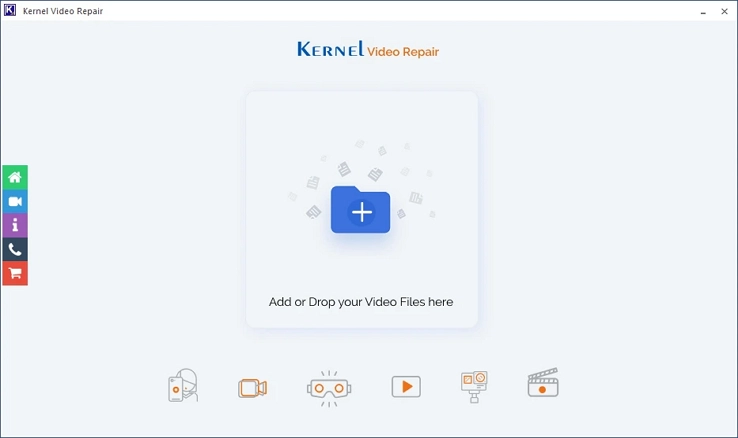
Step 2: On the software’s home screen, click on + icon to add videos.
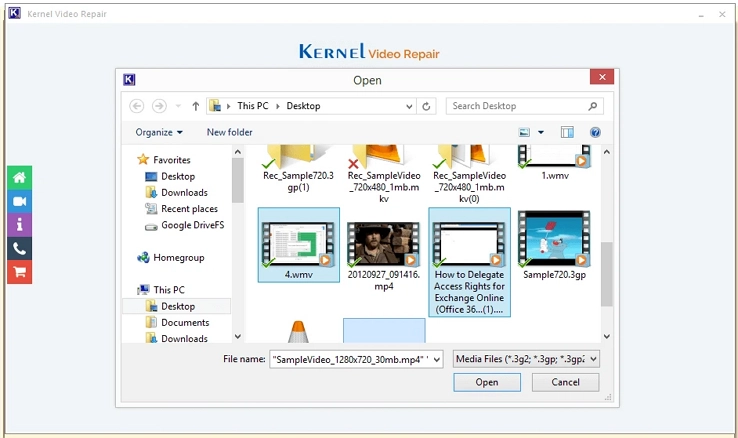
Step 3: Select all the damaged videos from your computer and click Open.
Step 4: Review all the selected video files and click on Repair Files.
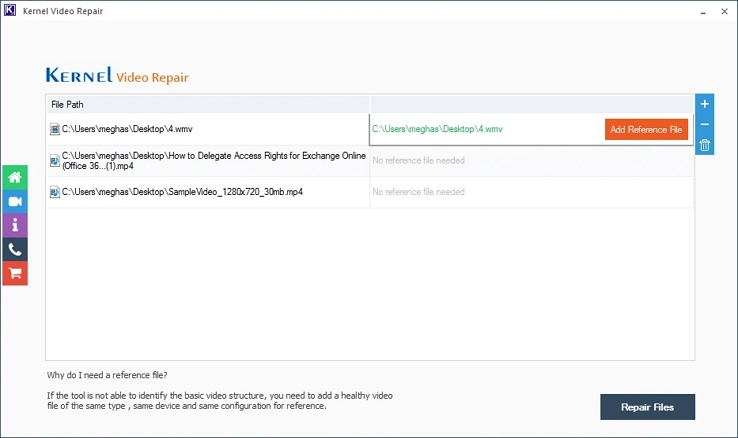
Note: Users can Add Reference File to get an output file like the given video.
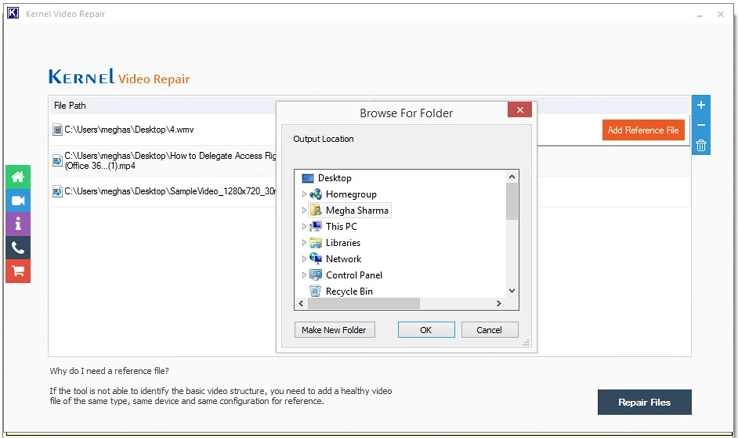
Step 5: In the following window, select a specific folder and click OK to save output video.
Step 6: The software will start repairing all the added videos.
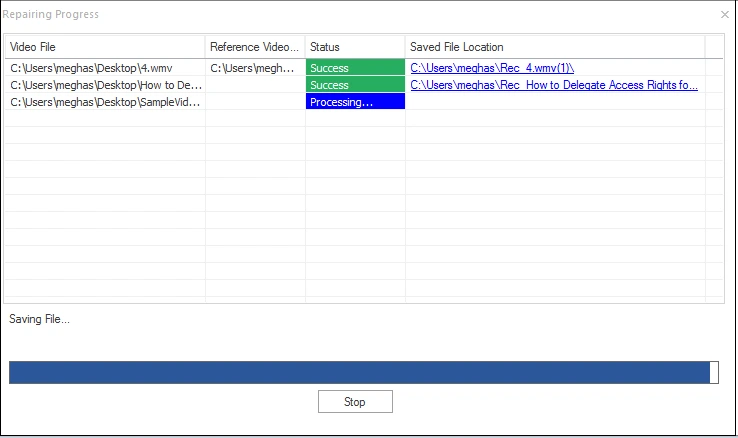
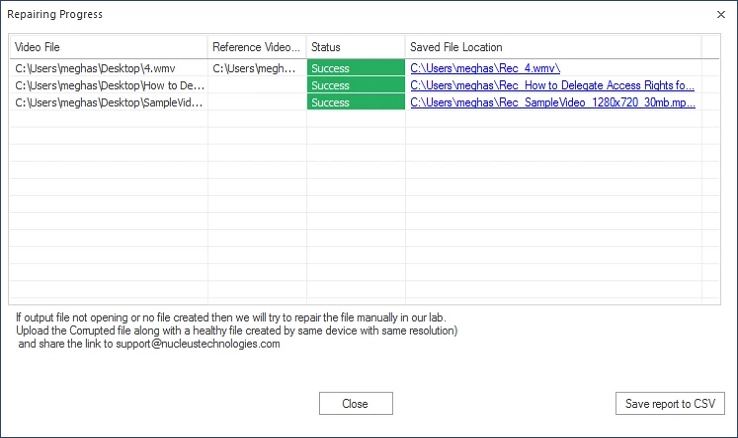
Step 7: After completion, the tool will show a Success status. Click Close.
Conclusion
Video file errors are common, especially when dealing with large media files or different formats. Issues like black screens, codec errors, freezing videos, or missing audio can quickly ruin the viewing experience.
Fortunately, most of these problems can be fixed by updating media players, installing codecs, converting formats, or repairing corrupted files. However, if your video is severely corrupted and damaged, then Kernel Video Repair is an all-in-one solution to fix all common issues.
Frequently Asked Questions
Question: Why does my video file not play on my media player?
Answer: A video file may not play due to unsupported formats, missing codecs, corrupted files, or outdated media players. Try updating the player, installing codecs, or converting the video into a widely supported format like MP4.
Question: How can I fix a corrupted video file?
Answer: You can try manual solutions such as re-downloading the video, converting the format, or using a different media player. If the video remains damaged, a professional video repair tool may help restore the file.
Question: Why does my video show a black screen, but the audio works?
Answer: This issue often appears when the media player fails to display video frames correctly. Updating graphics drivers, installing codecs, or opening the video in another media player can help resolve the problem.
Question: What is the easiest way to fix multiple video playback errors?
Answer: The easiest way is to use a reliable video repair tool that can fix issues like freezing, black screen, codec errors, or corrupted files in one process without complex manual steps.