How to Fix SQL Server Error 26 with Easy Steps?
 Written By: Rafael Galante
 Publish On November 17, 2026 Written By: Rafael Galante Publish On November 17, 2026
Connecting to SQL Server can be troublesome, especially if you get SQL Server Error 26. When you’re trying to connect through SSMS by typing in the server name and clicking Connect, you’ll get a network-related or instance-related error.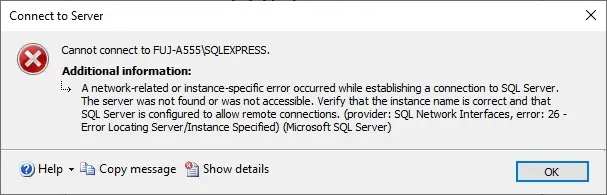
This is one of the most common errors you’ll get with SQL Server. This typically isn’t too problematic and will usually be due to an incorrect instance name, a stopped SQL Server service, or other issues. In this guide, we will explain what SQL Server Error 26 means in simple words and how to fix it.
SQL Server Error 26 pops up when the client application is trying to connect to the host machine but cannot find your SQL Server instance. It is not a password or login error. It happens before authentication, during the discovery stage.
When connecting to a named instance such as SERVERNAME\SQLEXPRESS, your client will ask the SQL Server Browser service (UDP port 1434) where the instance is running. If the SQL Server Browser service is stopped, the firewall is blocking the port, TCP/IP is disabled, or the instance name is incorrect, then you will receive this error. Basically, SQL Server exists, but your client can’t find it on the network.
Understanding the connection sequence makes it much easier to troubleshoot the issue:
Step 1. Parse Server Name
The client takes the Server/data Source value and parses it into the following:
Step 2. Resolve Host
The client will try to resolve the host name into an IP address using DNS, the hosts file, or NetBIOS. If it can’t find the host, then it fails to connect.
Step 3. Find Port (Named Instances)
Step 4. Connecting to Instance on Port Found
The client will establish the connection (TCP or Named Pipe), do the TLS and Login handshake, and only then does authentication occur.
Error 26 is a failure in Step 1 or Step 3
Here are some common causes behind SQL Server Error 26:
Here are a few manual methods that you can try to fix SQL Server Error 26.
Check that you are using the correct server name and instance name. If you are connecting to a default instance, type the machine name and IP address (e.g., SERVERNAME). If you are connecting to a named instance (like SQL Server Express), type the machine name and add \ and the instance name (e.g., SERVERNAME\SQLEXPRESS).
Make sure the SQL Server Services are running. If the service is stopped, no client can connect. Follow the steps and make sure SQL Server Services are running; if not, start them:
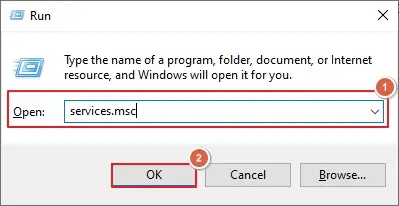
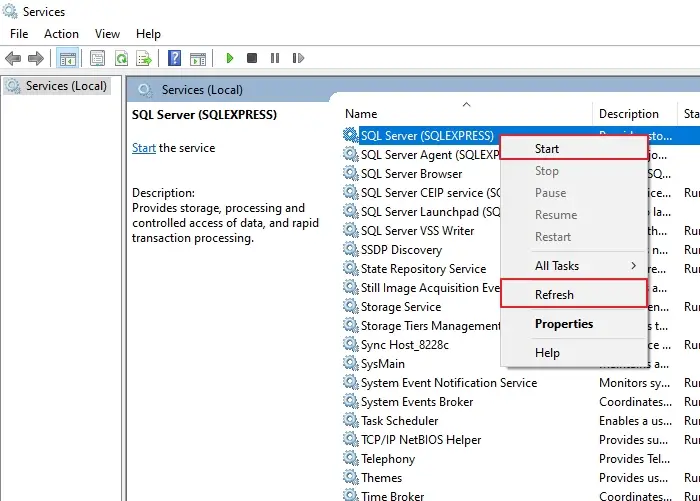
If you are connecting to a named instance, follow the steps below:
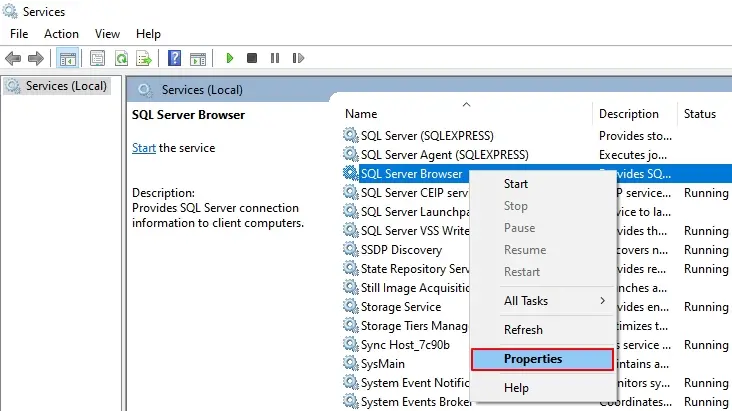
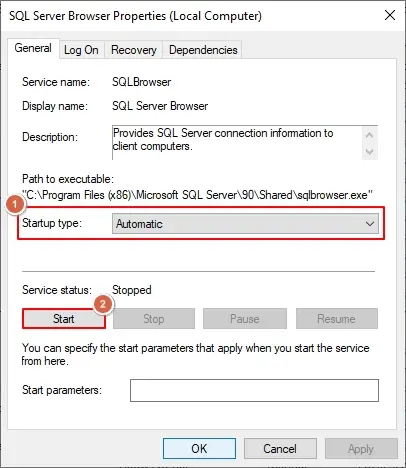
Sometimes, disabled protocols may also cause SQL Server Error 26. Many users on Reddit agree that ensuring TCP/IP is active is a vital step. Here are the steps that might fix this issue:
To check the port, follow the steps below:
Now, return to SQL Server Services in Configuration Manager and restart the SQL Server Service to apply network changes.
Many users have highlighted firewall blocks as a leading cause for this error. Make sure the firewall allows the following ports to establish a connection:
Note: If your named instance uses a custom static port, allow that TCP port as well.
Sometimes a corrupted database (like master) prevents the SQL Server service from starting at all. In such a scenario, you may see Error 26 as a side effect because the instance isn't running. No amount of firewall or Browser fixes will work until the corrupt database is recovered.
If the ERRORLOG confirms corruption in the database, then don’t try to force-start SQL Server with repeated repair commands, as it can cause further data loss. A safer approach is to first recover the data from the corrupted MDF/NDF file separately using a SQL recovery tool, and then attach the recovered database to a healthy instance.
For this, you can try the Kernel for SQL Database Recovery tool. It scans the corrupt MDF file, shows a preview of tables, views, stored procedures, triggers, and other objects, and lets you save them to a new database, SQL Script, or CSV file format.
Here are a few tips that every SQL user must follow to prevent encountering error 26 in the future:
SQL Server Error 26 may look daunting, but it is typically an easy one to fix. This really means that the client could not find your instance. Check the instance name that is being used, make sure SQL Server and Browser are running, enable protocols, and open up the firewall.
Ans. No, it is not a password error. It is a network or discovery error indicating that your application or client cannot find the specific SQL Server instance.
Ans. Yes, if you use a static port and connect using the tcp: ServerName and Port Number format (make sure to use the actual listening port).